BrandCat / Practical guide
How to set up a trademark watch in BrandCat
Watch a trademark name, focus it on relevant Nice classes and offices, review the matches, and prepare a report for your team or client.
A trademark-name watch starts with the wording of a mark: a brand name, product name, or distinctive phrase. BrandCat finds matching or similar trademark names in the registers it monitors and brings the results into a review workflow.
This guide follows that name-based workflow. The client name organizes the work; it is not the search term. For example, a watch for lucky strike inside a British American Tobacco (BAT) client group looks for relevant trademark names, rather than every filing owned by BAT. Reading a match's Goods & Services description is part of reviewing that record; it does not turn this into a Goods & Services keyword monitor.
1. Organize your watched marks
Sign in and open the main dashboard at https://brandcat.io/upanel/. The Brand & Trademark Name Monitoring section is on this dashboard. You can scroll to it or use Open Monitored Names at the top of the page.
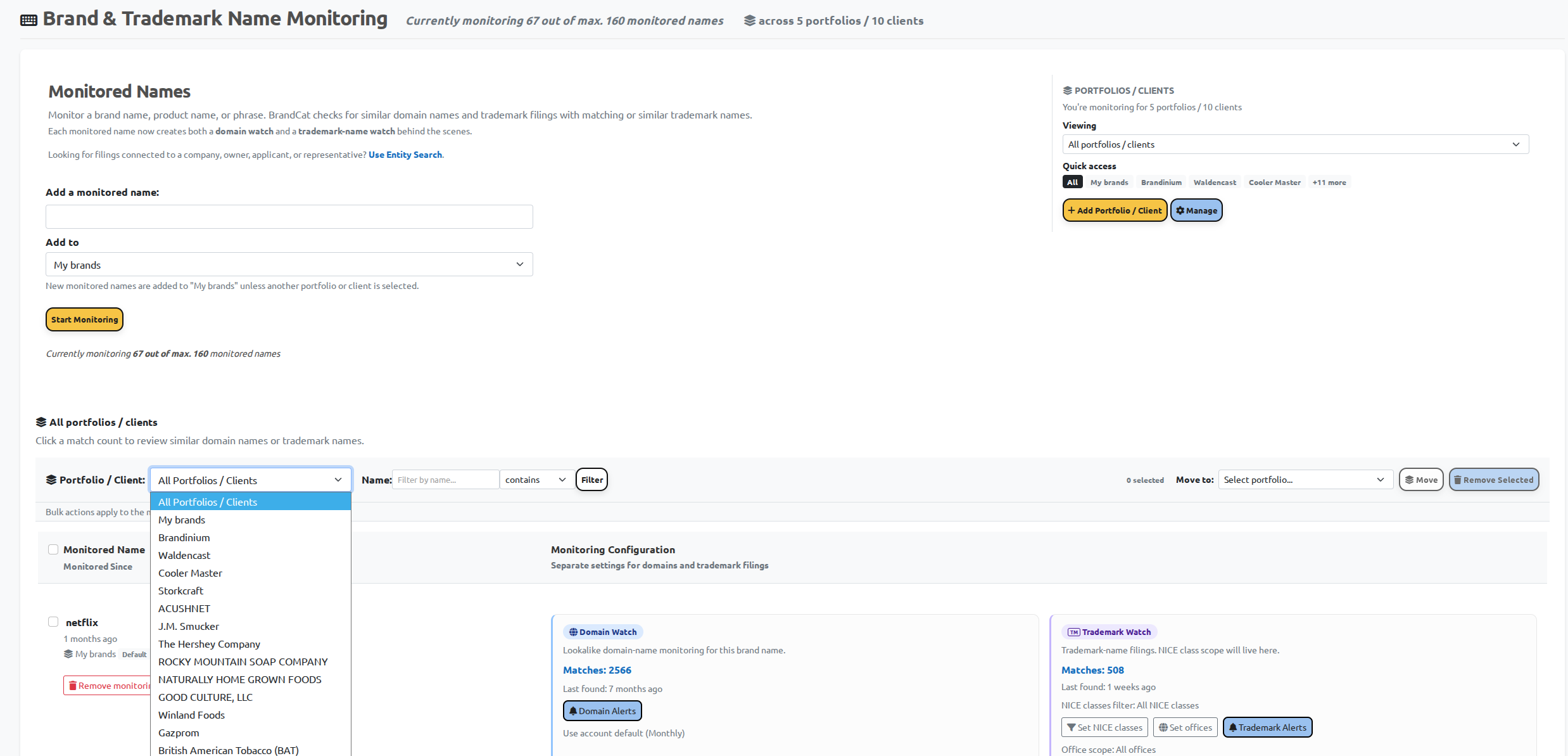
Use the Viewing dropdown in PORTFOLIOS / CLIENTS to focus the dashboard on a client or portfolio. The Quick access buttons provide shortcuts to groups. Above the monitored-name list, the filter bar also offers Portfolio / Client and a Name filter with a Filter button.
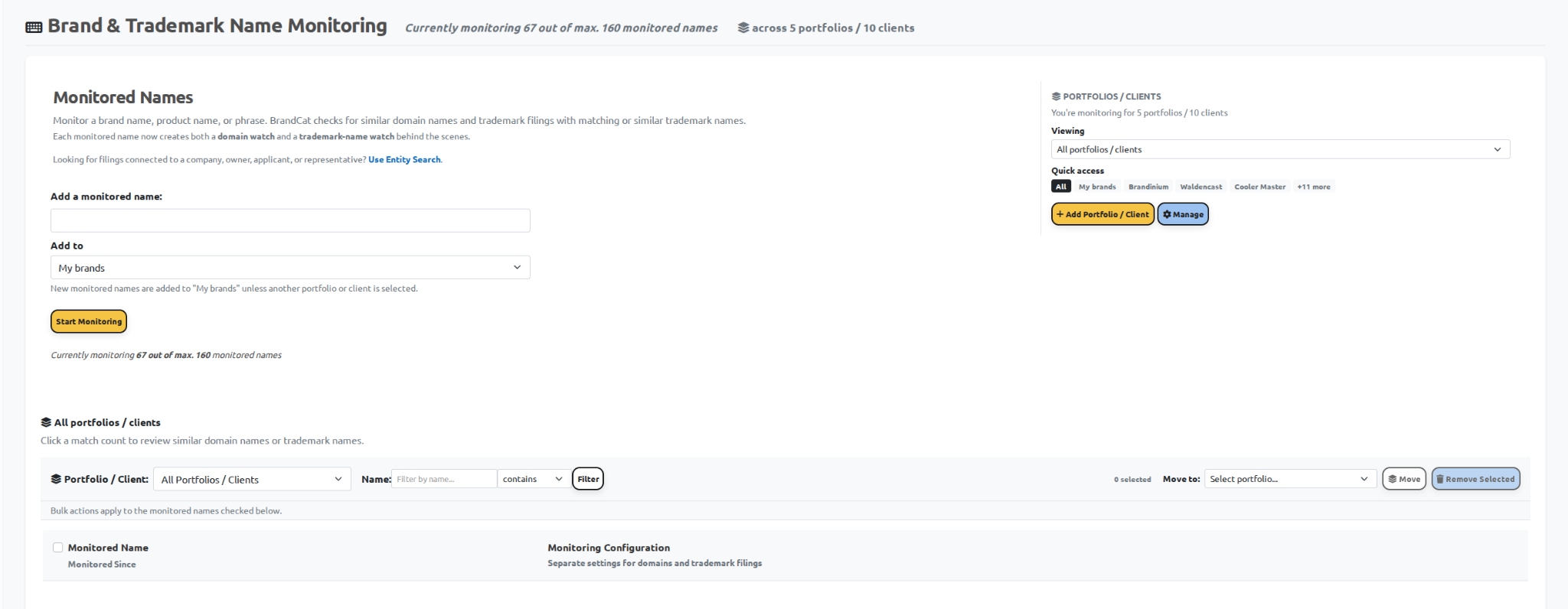
You can keep your own names under My brands, select an existing group, or create a separate portfolio or client group.
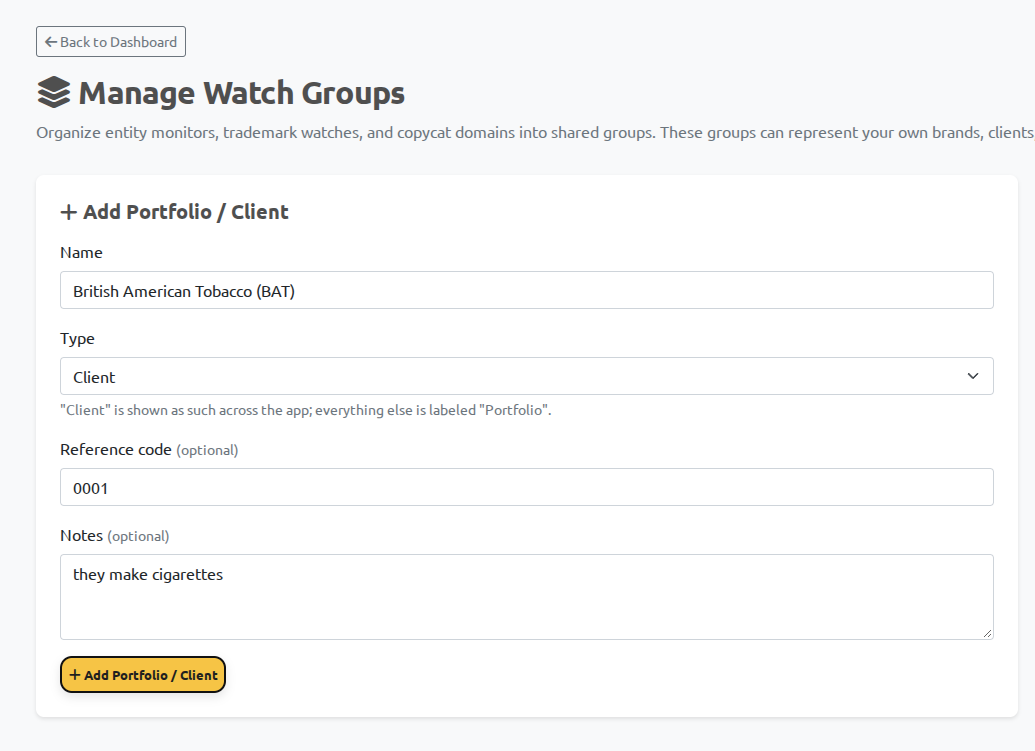
- Click Add Portfolio / Client.
- Enter a name, such as British American Tobacco (BAT).
- Select the appropriate Type. Choose Client when organizing work for a client.
- Add a reference code or notes if useful, then click Add Portfolio / Client.
A group can hold several watched marks, each with its own monitoring settings. This lets you review one mark at a time or bring the client's results together.
2. Add the trademark name
- In Monitored Names, enter the trademark wording under Add a monitored name. For this example, enter lucky strike.
- Use Add to to choose the portfolio or client. If you do not select another group, new names go into My brands.
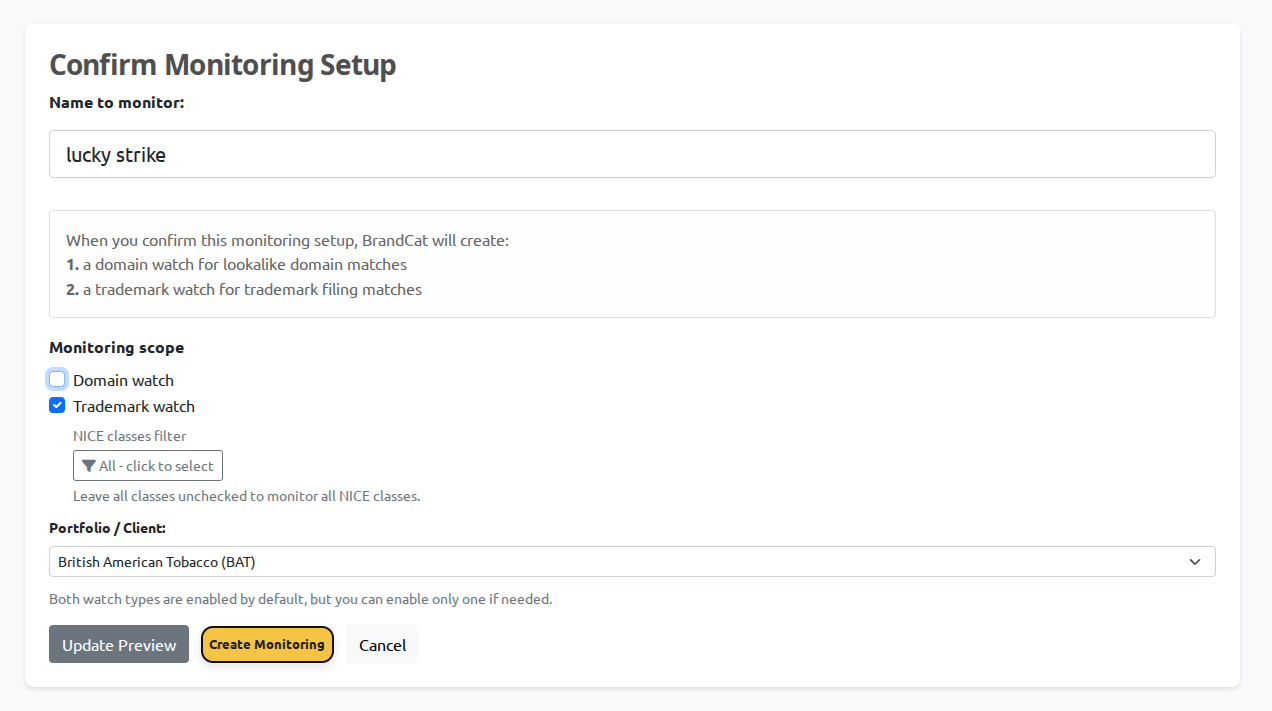
- Click Start Monitoring to open Confirm Monitoring Setup.
- Check the name and portfolio. Leave Trademark watch enabled. If you only want trademark monitoring, untick Domain watch.
Viewing changes which group you are looking at. Add to chooses the group for the new monitored name. Check Add to before starting the watch so the name is assigned to the intended client or portfolio.
The confirmation screen offers both watch types, enabled by default. The checkbox choices let you set up trademark monitoring on its own or alongside lookalike-domain monitoring.
3. Set the Nice classes and trademark offices
Choose the class scope for this mark
On the confirmation screen, open NICE classes filter. Select the classes you want this watch to cover, then click Apply NICE Scope. For this LUCKY STRIKE example, tick 34 - Tobacco & Smokers' Articles. When editing an existing watch, the confirmation button may instead read Save NICE Scope.
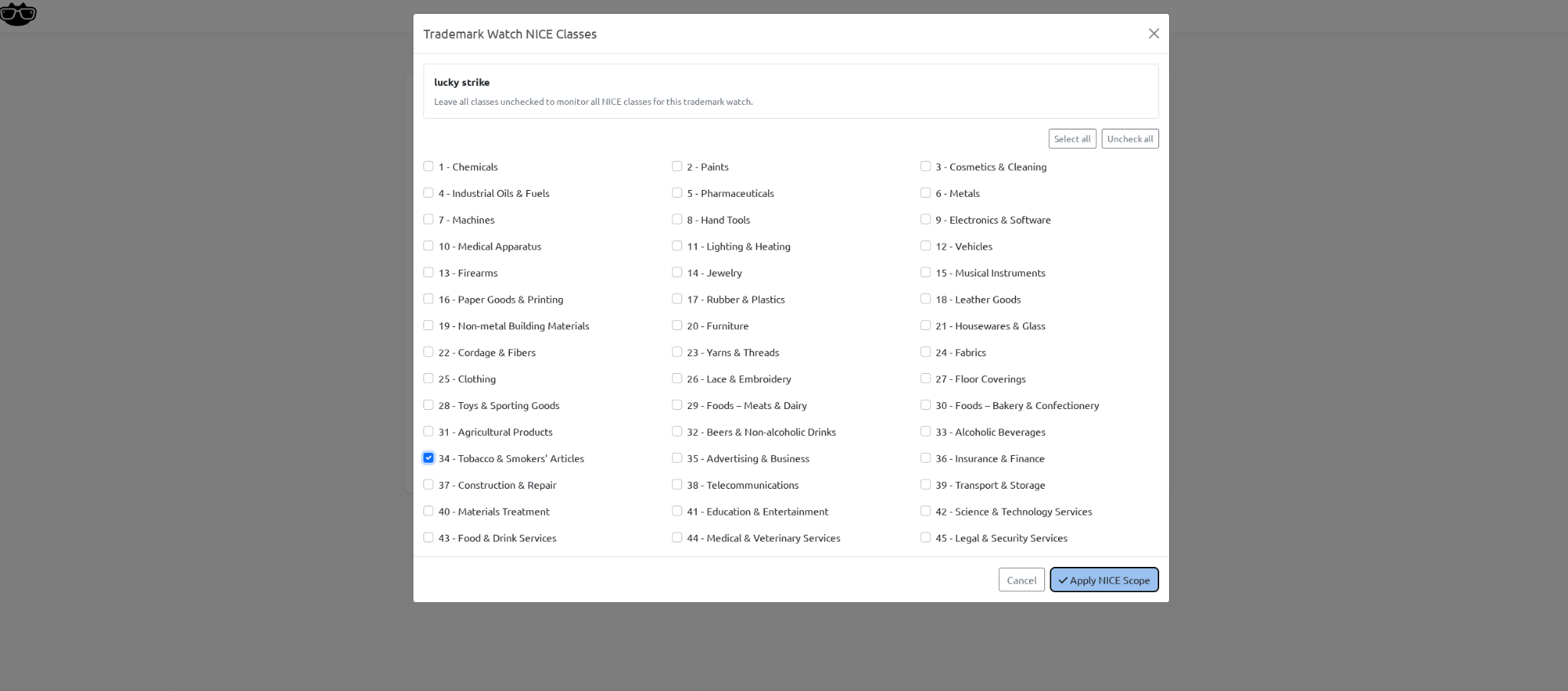
Leaving every class unchecked means all Nice classes. It does not mean that the watch is disabled. Use that broader scope when you want to review name matches across industries; select individual classes when you want a more focused watch.
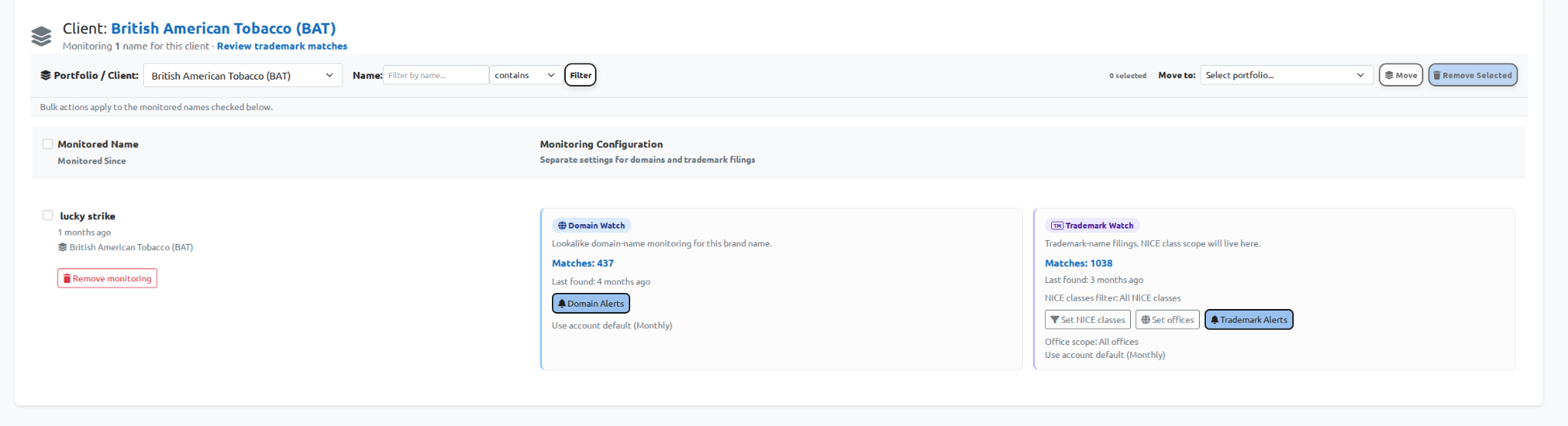
Check the setup and click Create Monitoring. You can return to the saved watch and use Set NICE classes to adjust its class scope later.
Choose the office scope
In the saved watch's Trademark Watch panel, click Set offices to choose the registers you want to monitor. Check the displayed Office scope afterward. The example below shows All offices.
BrandCat's coverage page lists the supported offices and their update schedules. Check the current office list and the relevant office pages when planning coverage; update frequency varies by source.
4. Open and filter the trademark matches
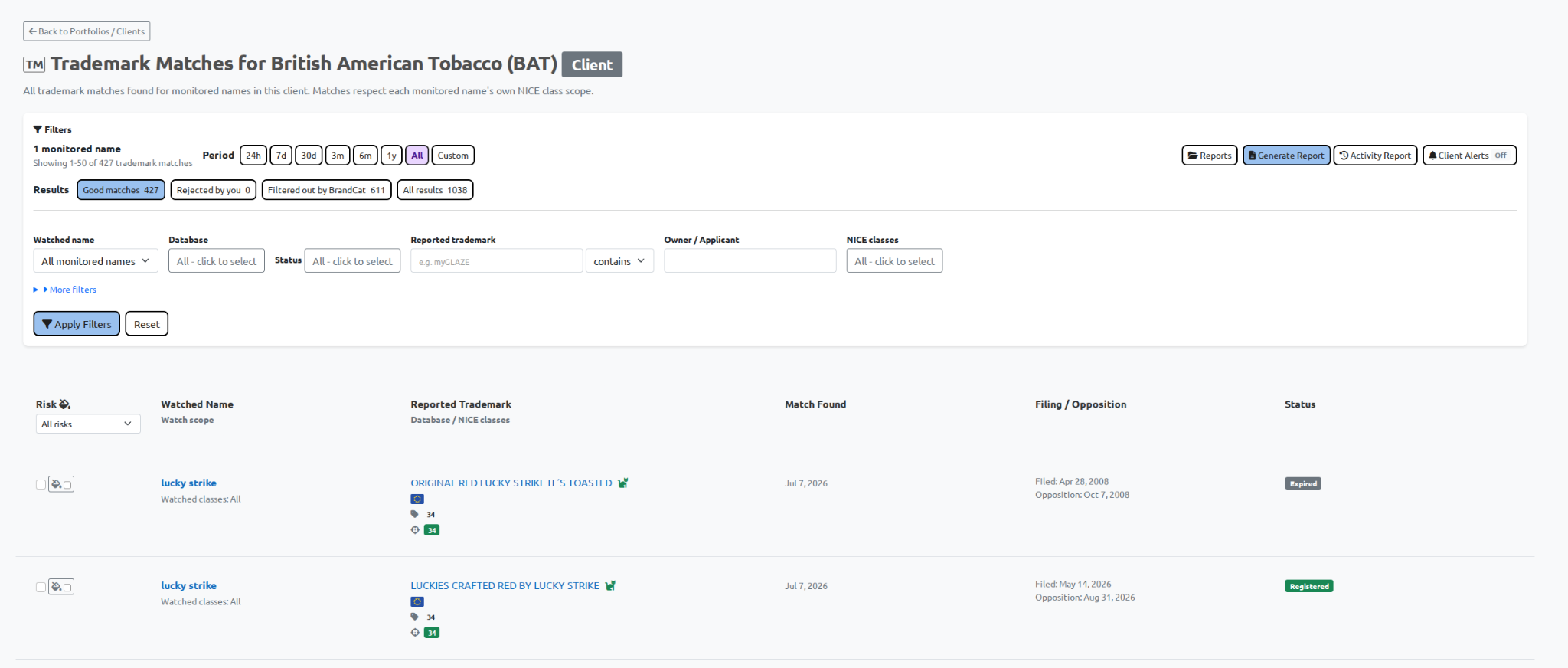
Click the Matches link in the Trademark Watch panel to open that watch's results. For a combined client or portfolio view, use Review trademark matches beside the group heading.
The combined view brings together the monitored names in that group while respecting each name's own Nice-class scope. One client's marks can therefore use different class selections without needing separate client reports.
Choose a period and narrow the list
The period controls include 24h, 7d, 30d, 3m, 6m, 1y, All, and Custom. Choose the window you need, then use the filters to focus the review.
| Control | What to use it for |
|---|---|
| Watched name | Review one monitored name within a larger client or portfolio. |
| Database | Focus the list on selected trademark offices or registers. |
| Status | Narrow the view by the statuses available in the records. |
| Reported trademark | Find particular wording within the returned trademark names. |
| Owner / Applicant | Narrow existing name-watch results by the party behind the filing. |
| NICE classes | Focus the displayed results on particular classes. |
| Risk | Return to matches with a particular review color. |
Click Apply Filters after making your selections. Use Reset to clear the results-page filters.
Example: review LUCKY STRIKE results in Class 34
The individual watch view below shows NICE classes filter: 34, with 34 also entered in the results-page class filter. The returned filings show Class 34, and the matching class is highlighted in green. This is a class-filtered view of one watched name, rather than the combined client view above.
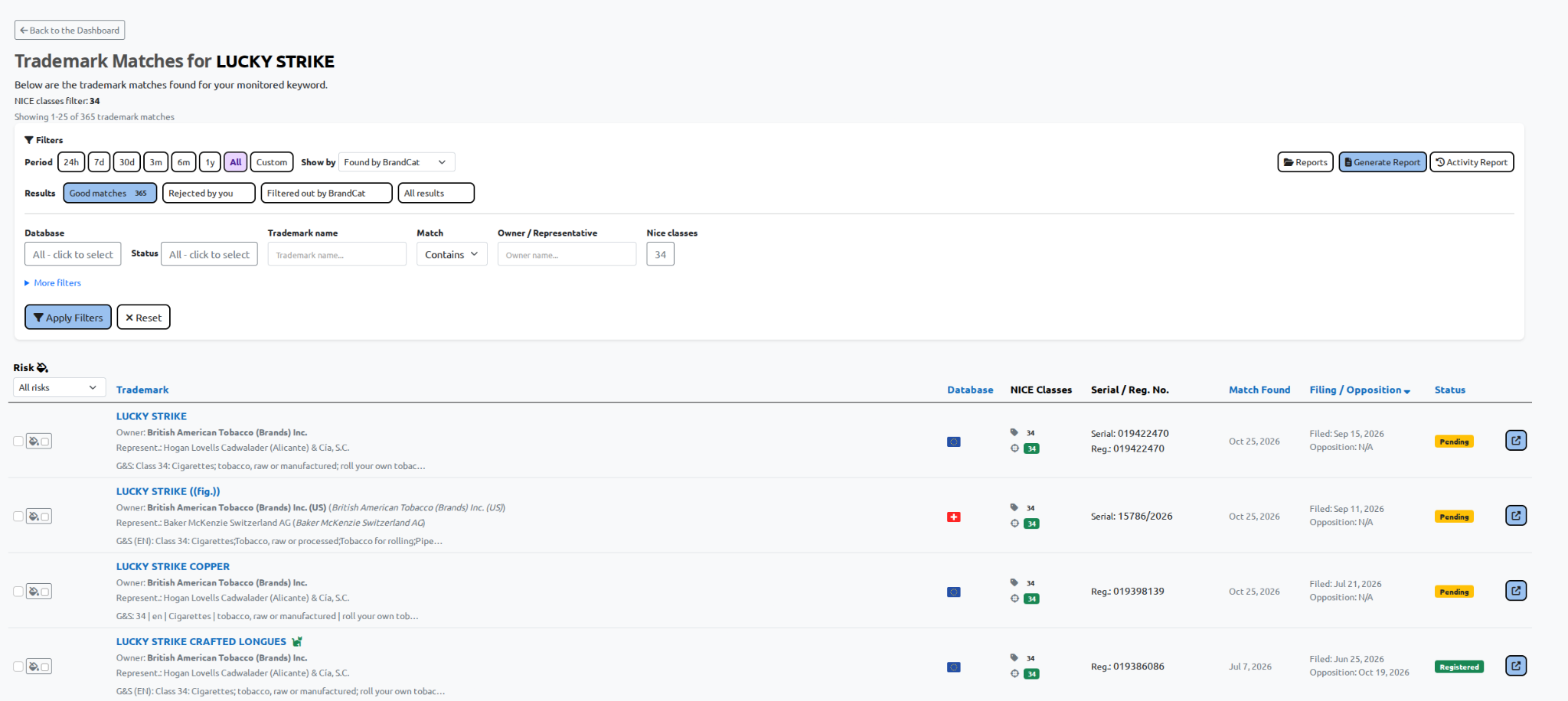
In this view, Show by is set to Found by BrandCat. Read the selected period together with that date basis: the first visible result was found on 25 October 2026 but filed on 15 September 2026. The Match control is shown as Contains; this is a control on the results screen, separate from creating the watched name.
Understand the result categories
Good matches is the main review list. Rejected by you contains results you have marked irrelevant. Filtered out by BrandCat lets you inspect results set aside by BrandCat's filtering, while All results gives you the broader result set.
The label Good matches does not mean a filing is legally conflicting. It identifies the application's result category; your review determines whether a record needs attention.
Read a result in context
Compare the Watched Name with the Reported Trademark. Check the office, the reported classes, and any highlighted matching classes. Open the reported trademark to inspect the fuller record, including owner or applicant, Goods & Services, dates, numbers, and status where available.
Keep Match Found separate from the filing date. An older filing can appear in your match list, as the supplied examples demonstrate. A recently found match is not necessarily a recently filed application.
Class overlap helps prioritize review, but the actual goods and services still matter. Where an opposition date is displayed, check the current official record before relying on it for action.
5. Record your assessment
Use the color control beside a match to record your review assessment. For several matches, tick their checkboxes and use the bulk-action bar to apply a color. Use Mark irrelevant when you want to reject selected results from your working review list.
Agree on the meaning of each color within your team. For example, you might use one color for records requiring closer review and another for records already assessed. The color records your judgment; it is not an automatically generated legal conclusion.
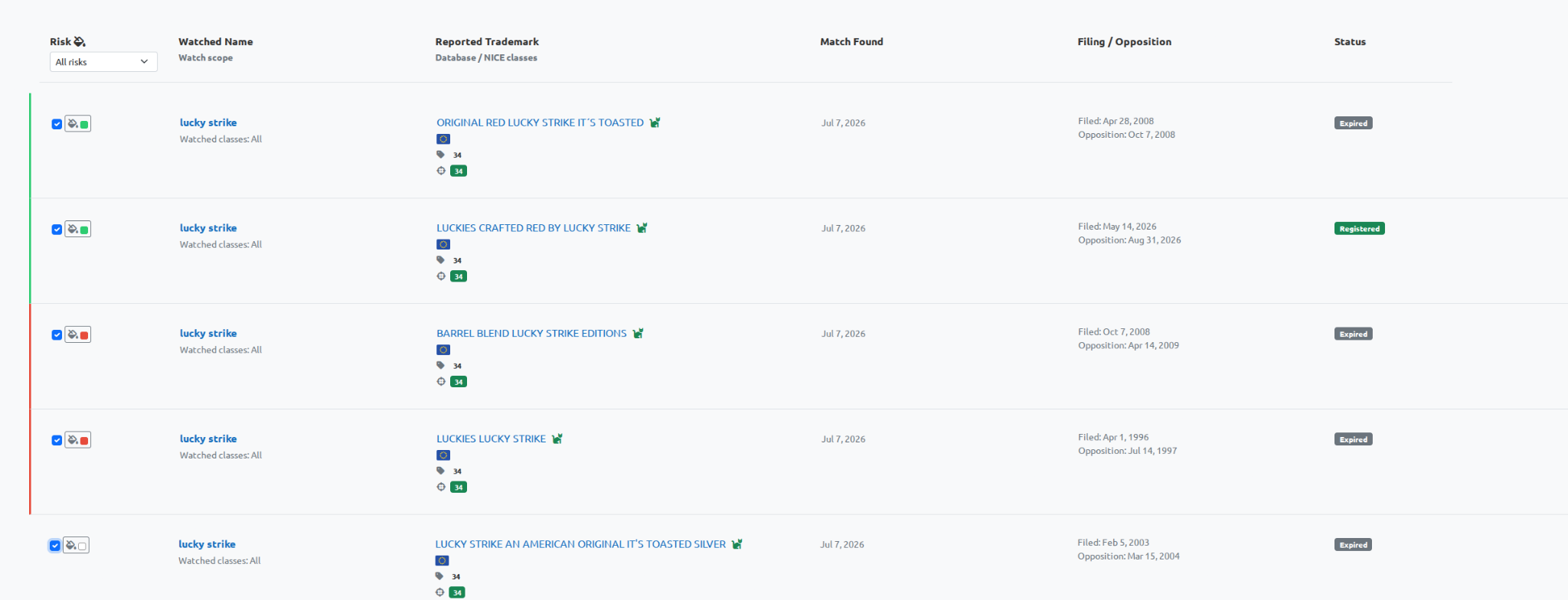
Review colors belong to the user and the watched-mark relationship. They can carry into the generated Excel, HTML, and PDF reports, preserving the review context when you hand the results to someone else.
6. Generate a report from the results you need
Choose the reporting period, apply the relevant filters, and complete your review. Then click Generate Report.
The report dialog offers two choices:
- All matches matching the current filters: include the full filtered result set.
- Selected matches: include only the records whose checkboxes you have ticked.
Check the option carefully. Selecting five checkboxes and choosing the full filtered set produces a different report from choosing those five selected matches.
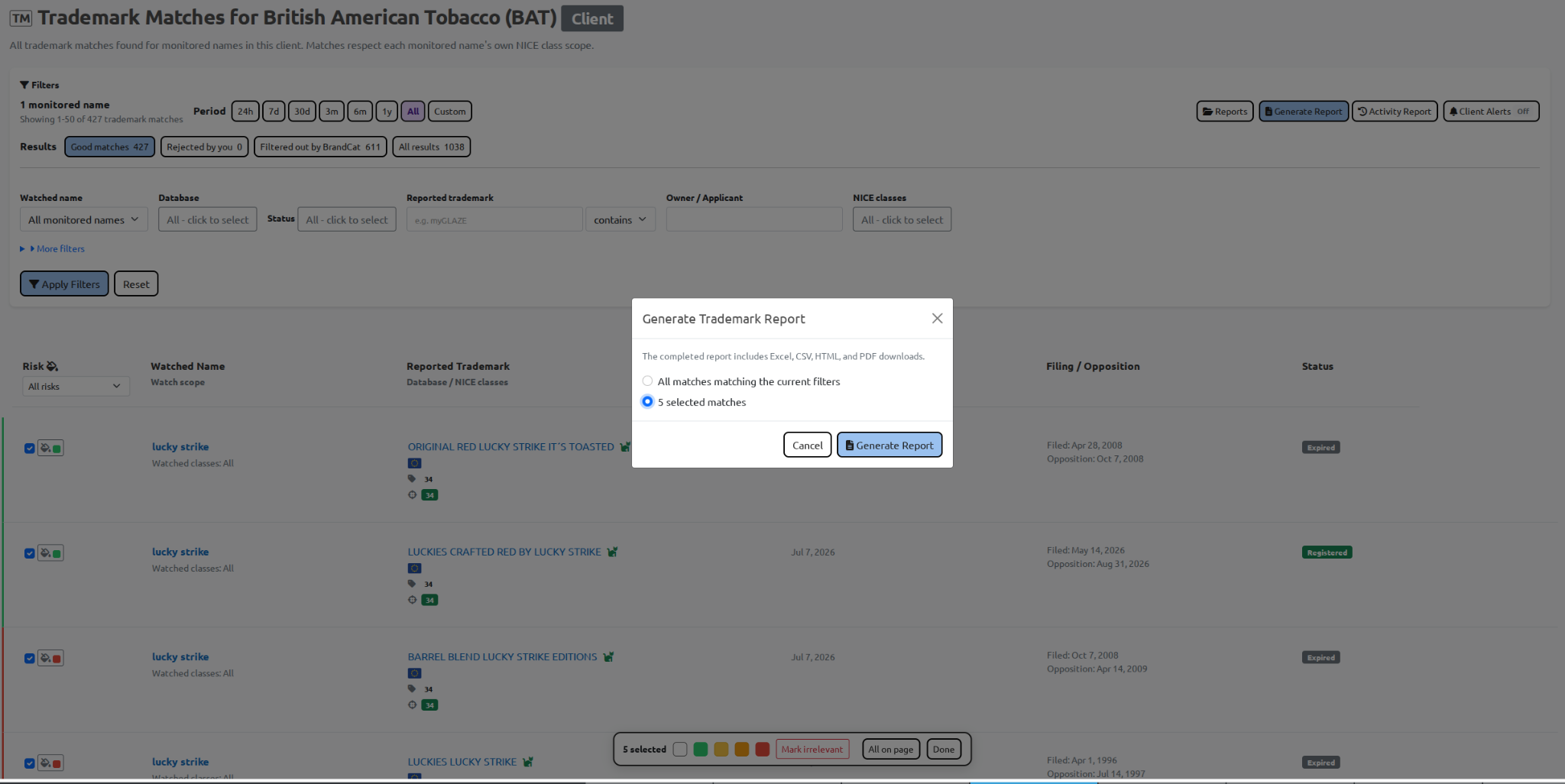
Click Generate Report in the dialog. BrandCat queues the report and displays it under Trademark Reports, with an email notification when it is ready.
Once the status is Ready, use Open HTML, Download CSV, Download Excel, or Download PDF. Saved reports remain available in the report history.

7. Work with the Excel report and share record details
The supplied Excel examples contain a Matches sheet and a Summary sheet. The Matches sheet puts the watched sign beside the reported sign, with the supporting filing details needed for review.
Its columns include risk, opposition deadline, watched and reported signs, Nice classes, office, application or serial and registration numbers, filing and registration dates, status, owner or applicant, representative, Goods & Services, and a Watch Notice Link. It also provides Use check, Use link, and Reviewer notes columns for further work in the spreadsheet.
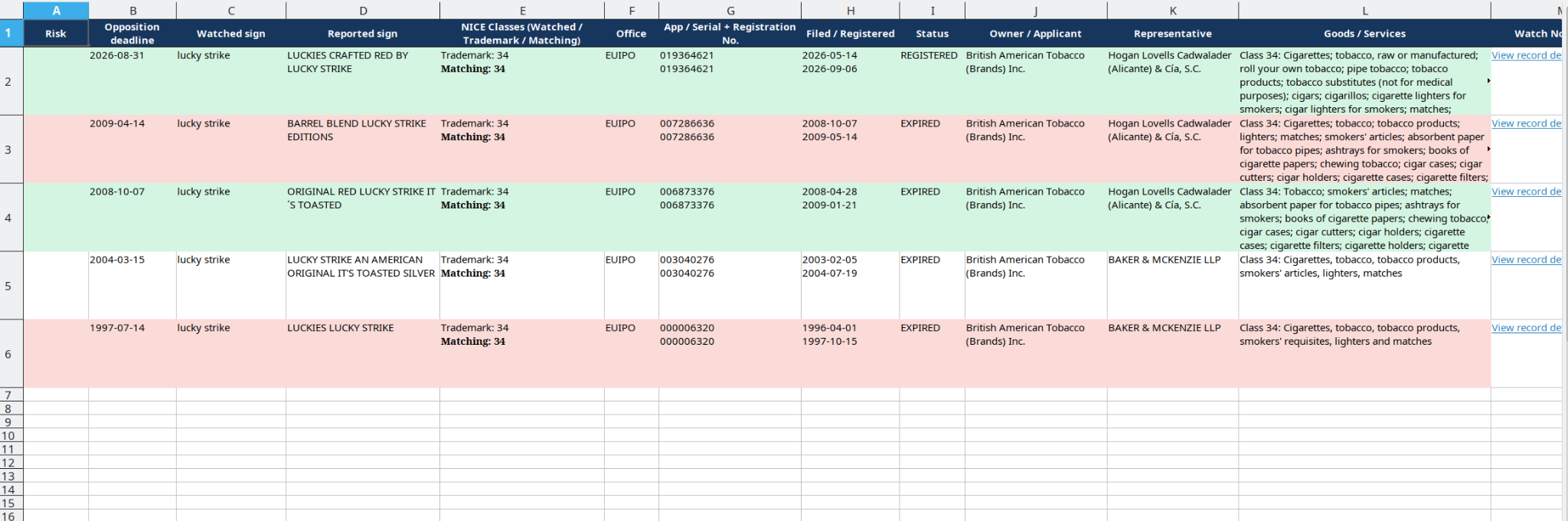
In the Watch Notice Link column, click View record details to open the linked trademark record. You can send that link to a colleague or client: the recipient does not need to log in to BrandCat to view the linked record.
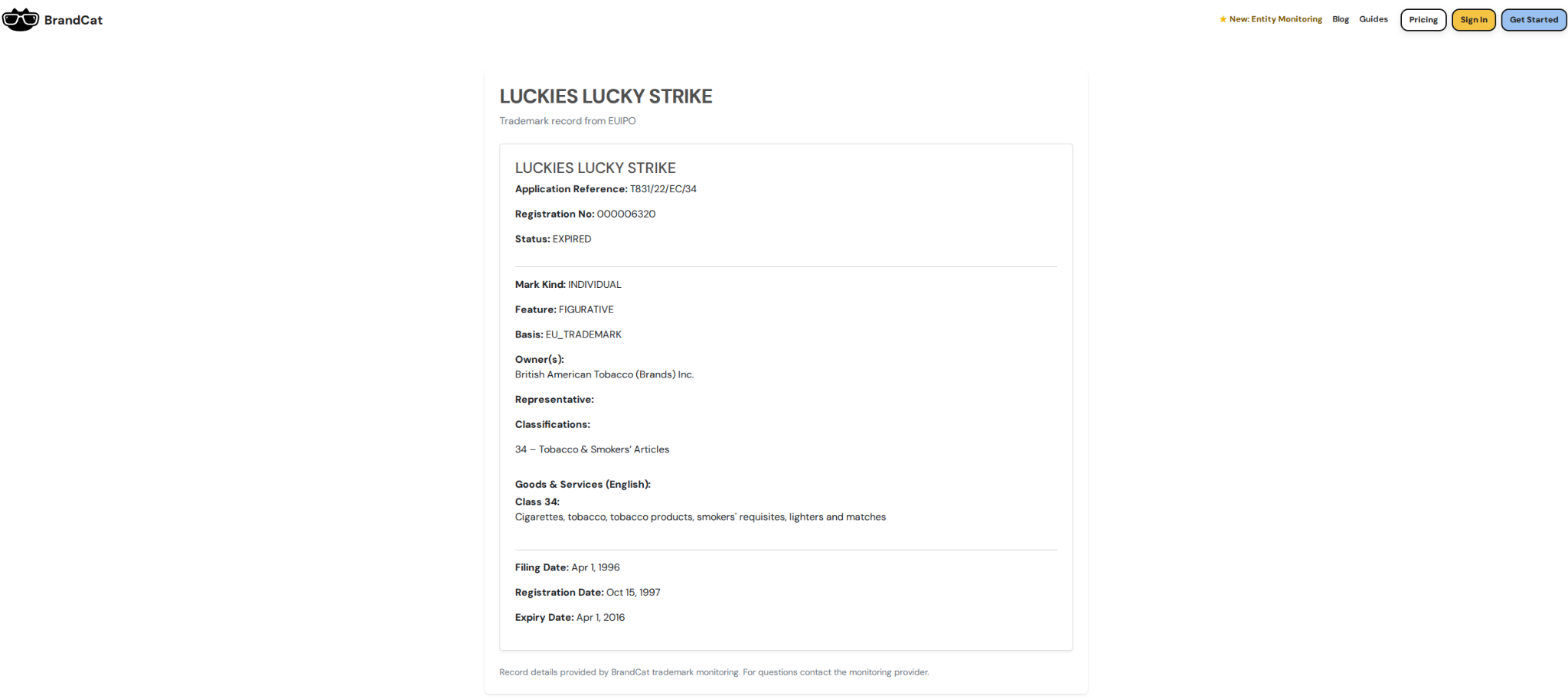
This makes it possible to send a short report while still giving the recipient access to fuller record information.
8. Set alerts and keep the watch useful
Use Trademark Alerts in the saved watch's Trademark Watch panel to configure notifications for that name. In the combined client results view, use Client Alerts for the client-level alert settings.
Individual watches and client or portfolio alerts can have different cadences. A consolidated client alert still respects each watched mark's own class scope. Choose from the options offered in the alert settings and check whether a watch is inheriting the account default.
For each review cycle, open the relevant period, assess the matches, and generate the report you need. If the list is too broad, check the saved class and office scope. If it looks unexpectedly narrow, check both the saved scope and the current list filters, and inspect the other result categories.
